Get ready on your watch
Install the TrueRound watch app on your paired Apple Watch. If it is not on your watch, check the Watch app on iPhone for available apps.
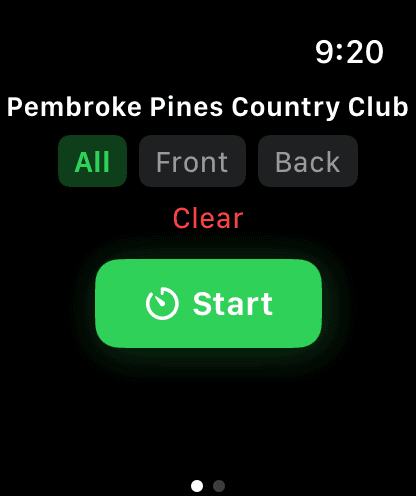
Open TrueRound on the watch and follow any Health or workout permission prompts for activity tracking. Finding nearby courses also uses location access and needs a connection to load course data.
- To track putting, swipe to Settings in the watch app and enable Track putts before starting. Check the watch setting even if Track Putts is already on in the iPhone app.
- Tap Find Course and select your course.
- For an 18-hole course, choose All, Front, or Back. For a 9-hole course, choose 9 or 18.
- Tap Start to begin your round.
Keep score from your wrist
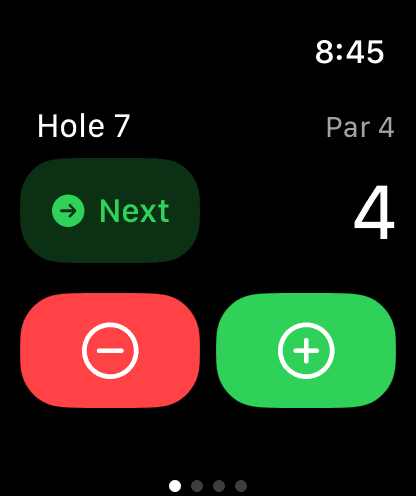
The current-hole screen keeps the stroke controls close at hand. Your total score includes the strokes you have entered for the current hole.
With Track putts enabled in the watch app's Settings, the watch prompts for putting after each hole, including the last one. Use plus and minus to enter the count, then choose Save. Skip leaves that hole's putting data unrecorded, rather than recording zero putts.
- Tap plus for each stroke and minus to undo an extra tap. Include putts in your total strokes.
- Tap Next after recording the hole's score.
- If putt tracking is enabled, enter the hole's putts and tap Save, or choose Skip.
- Repeat for each hole. On the last hole, End replaces Next.
Finish the round and review it on iPhone
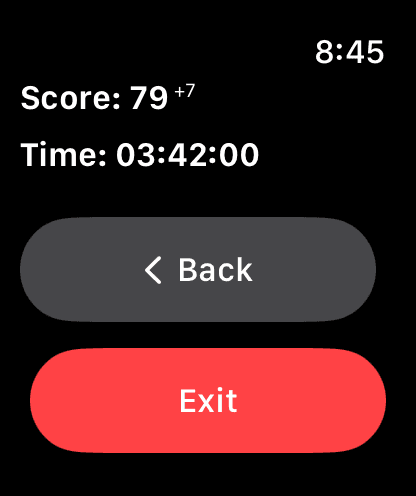
The end screen shows the score and time for the round. Exit completes the round; Back returns you to scoring if you still need to make a correction.
- Tap End after scoring your final hole and complete any putt prompt.
- Review the score and time, then tap Exit to finish.
- Open TrueRound on your paired iPhone and look for the saved round on Home.